Quick Start
Step 1. Register your account and get the probe
To register fill in the e-mail and password fields. You will get a confirmation email with an activation link. Please confirm your registration.
Log in and create a project by clicking the button:

You will be redirected to the project page automatically. Download the probe’s archive file by clicking the button:

Extract the downloaded archive to a required directory.
Choose a folder matching your operating system (lin32/64, win32/64).
Note
The archive file is attached to the current project only.
Step 2. Set up and run the probe
- Edit monitor.cfg in a chosen folder. Edit “AppDescription” field to change the probe name (the file must be in the UTF-8 if you use non-alphanumeric symbols).
- Edit proxy server in monitor.cfg file if it is necessary. Then enable it by deleting “//” symbols at the beginning of the line.
- Run streamMonitor.exe in your command prompt (./streamMonitor - OC Linux).
- For Windows OS: allow streamMonitor.exe to communicate in public and private networks (set two check boxes in the Windows Firewall).
Step 3. Set tasks to the probe
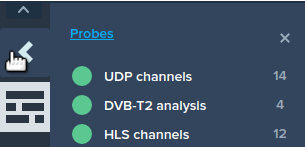
After running the probe, the service page should update automatically. Open the sidebar containing the name of your probe and click it.
To set a task for the analysis click the button:

Fill in the fields listed below and click the “Run” button in the resulting window. You can run several streams simultaneously.
- URI - location of the streams to be analyzed (supported prefixes are: file://, udp://, rtp://, http://, https://).
- Name - name of the analyzed stream.
- Network interface IP - NIC IP address used by the probe to receive the stream. Leave it blank if you want the probe to work according to the routing table.
Click the “LiveView” icon to check the run visually.

For detailed information about the stream click its name.
Note
The user is able to analyze up to 10 streams for 7 days right after the registration. Contact the technical support team to get a 30-day trial version using the “Contact us” form.*